
Product guide
Exporting results
Everything a project produces is downloaded from one place: the export center. This guide explains what you get with each export type, what you decide on each tab of the editor, and how to reuse your setup with templates.
The export center
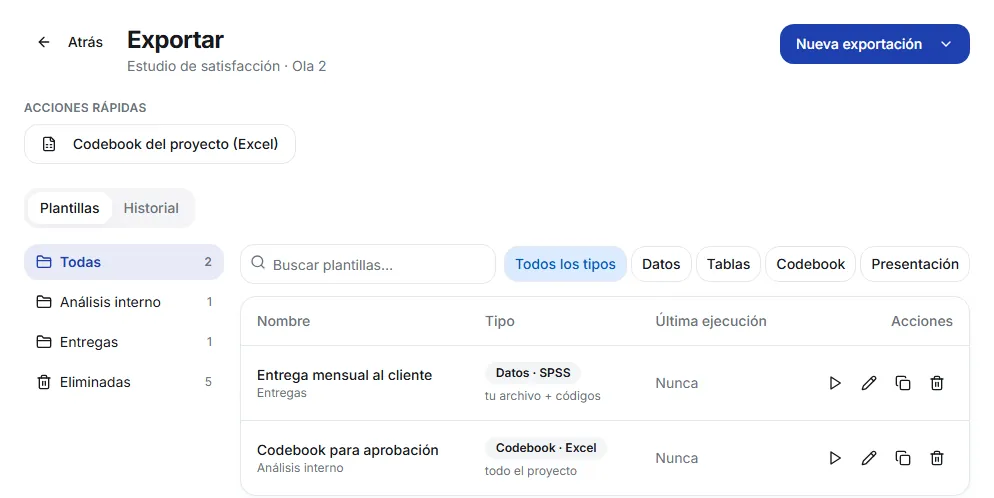
Open your project and go to Export. From that screen you create new exports, save the ones you repeat as templates, and download again any file you already generated.
- New export: the button at the top right. You pick the type: Data, Tables, Codebook or Presentation.
- Quick actions: one-click shortcuts, such as the project codebook.
- Templates: the exports you saved to repeat them, organized in folders.
- History: everything exported in the project, with its files.
To export coding results you need at least one coded question.
Quick action: Project codebook
The Project codebook (Excel) button downloads the codebook of the whole project in one click: each code with its category, number and definition, sorted by code number. The download is recorded in History.
New export: the four types
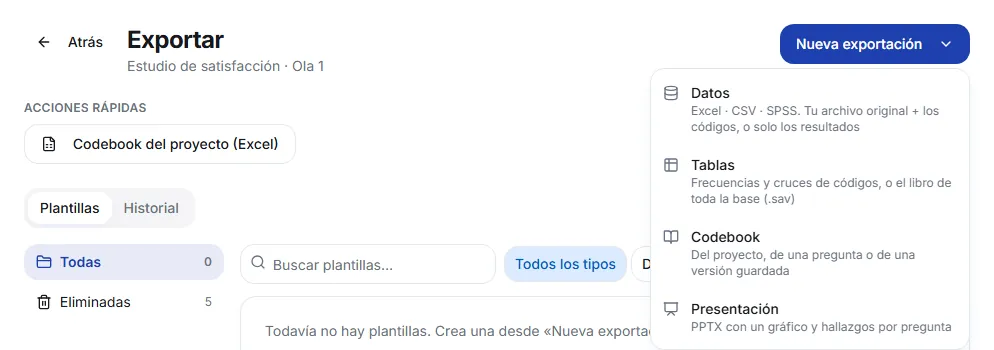
- Data: your responses with their codes, in Excel, CSV or SPSS (.sav). You can get your original file with the codes added, or the coding results only.
- Tables: code frequencies and crosstabs in a multi-sheet Excel file, or the tab book of the whole base if you uploaded a .sav.
- Codebook: the codebook of the project, of one question or of a saved version.
- Presentation: a PPTX with a chart and the findings for each question.
Data: which file you get
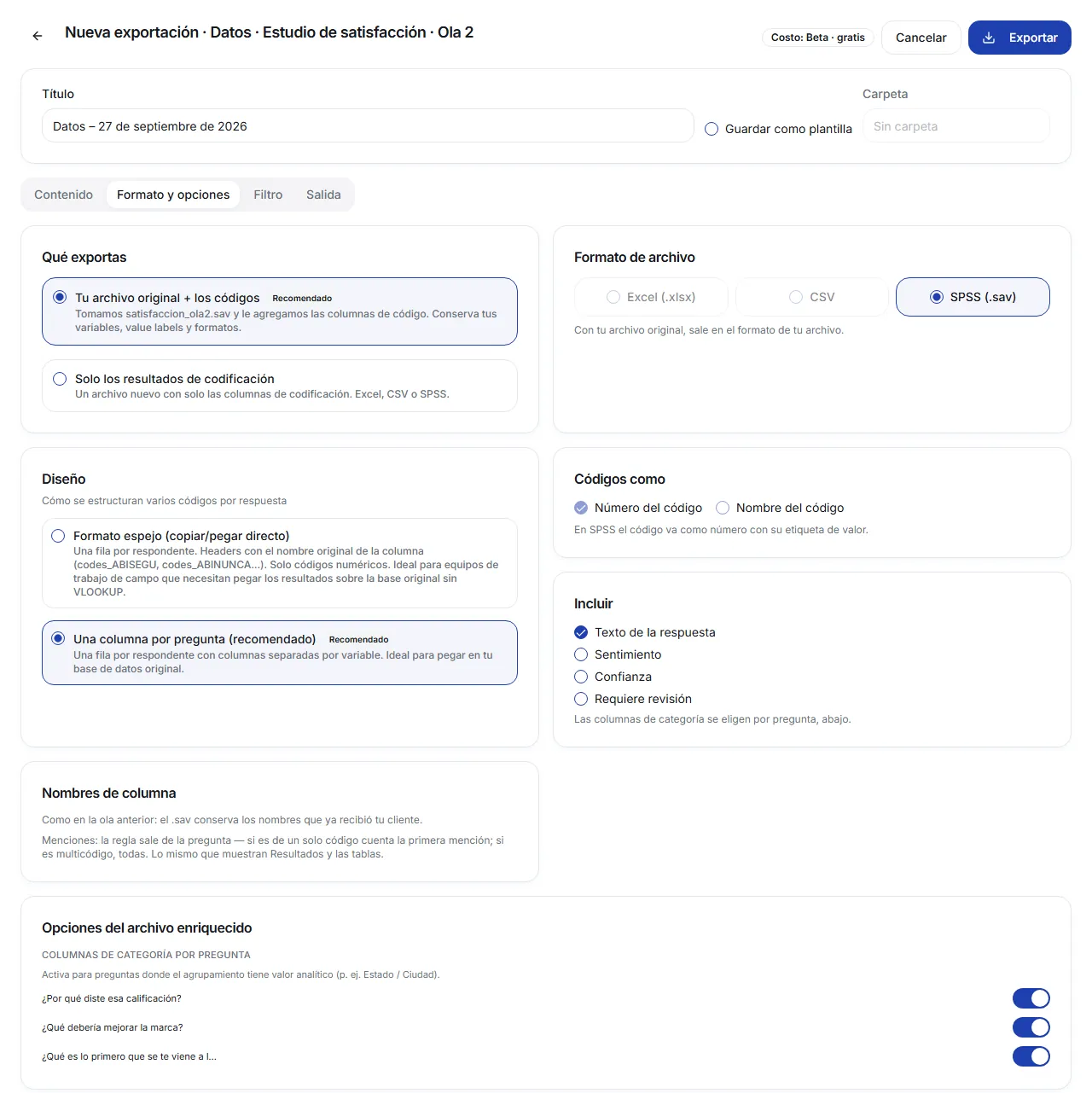
On the Format and options tab you first decide What you export:
- Your original file + the codes: we take the file you uploaded and add the code columns. If it's a .sav, it keeps your variables, value labels and formats. If it's an Excel file, the code columns go at the end, row by row. The file comes out in the same format you uploaded.
- Coding results only: a new file with just the coding columns, in Excel, CSV or SPSS.
The first option is available when the project has a .sav, or an Excel file of up to 5,000 rows, that we can complete. Otherwise it's disabled and the screen tells you why.
When you export your original .sav
- It isn't downloaded instantly: it's processed and shows up in History, where you download the files. That's why the button says Export instead of Download.
- It goes through a verifier that checks your file comes out intact and that the codes match the codebook. If it finds something, the file is held until an admin reviews it.
- Under Enriched file options you choose, question by question, whether to add category columns (Per-question category columns). Turn them on where the grouping has analytical value.
- Code column names stay the same as in the previous wave, so your client always gets the same variables.
The editor: four tabs
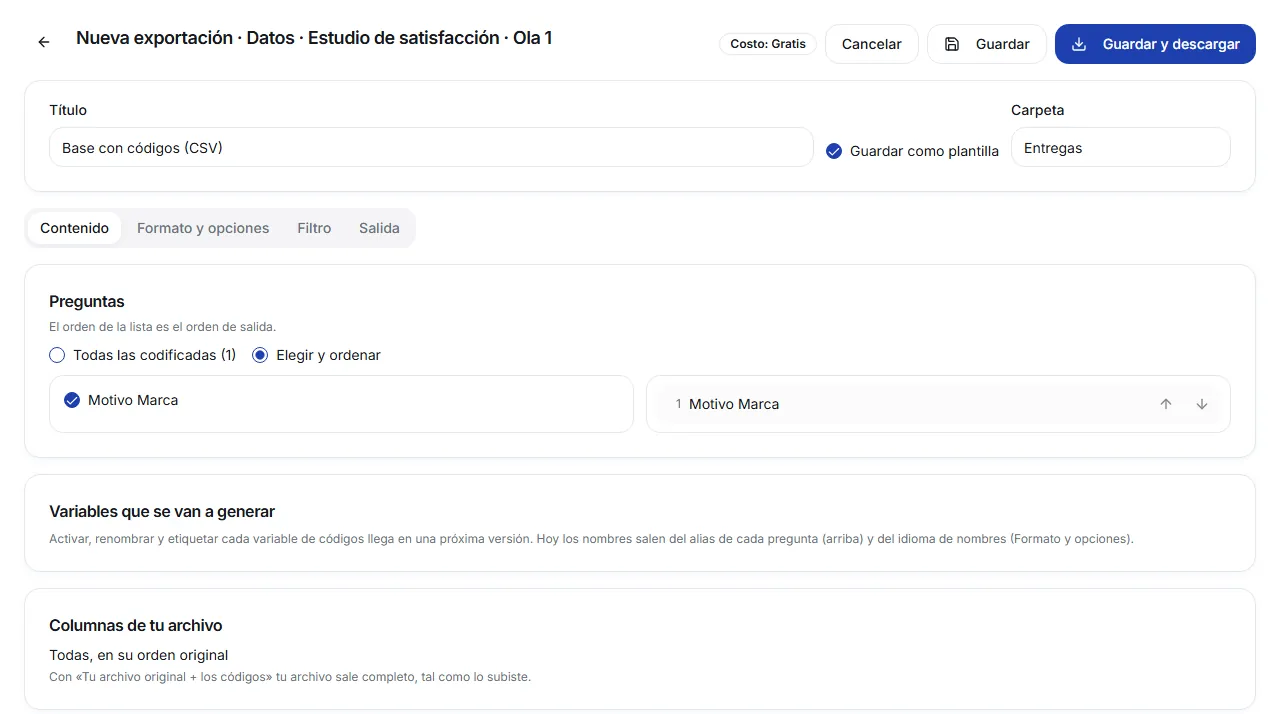
Data and Codebook are set up in the same editor. At the top you enter the Title, tick Save as template if you'll repeat it (and choose a Folder), and see the Cost before you export.
Content
Which questions go out and in what order. Choose All coded or Choose and order: the list order is the output order. You can also give each question an alias to name its columns.
Format and options
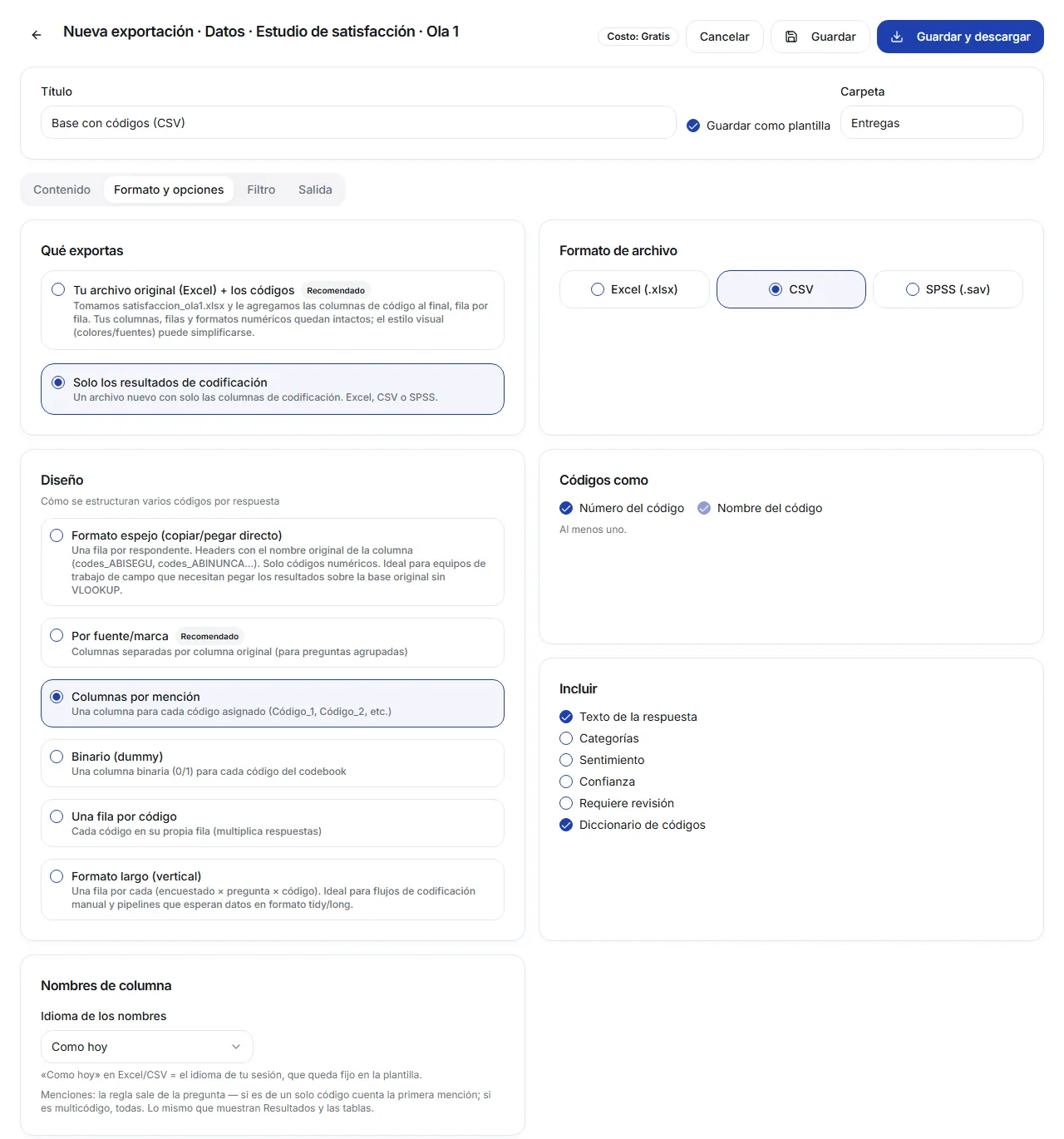
The file format and what it looks like inside:
- File format: Excel (.xlsx), CSV or SPSS (.sav).
- Layout: how several codes per response are arranged. For example Columns by mention, Binary (dummy), One row per code or Mirror format (copy/paste ready), which lets you paste the results onto your original base. The options depend on your questions, and the one marked Recommended is the suggestion for your case.
- Codes as: code number, code name, or both. In SPSS the code goes as a number with its value label.
- Include: response text, categories, sentiment, confidence, “needs review” and code dictionary.
- Column names: the language of the column names.
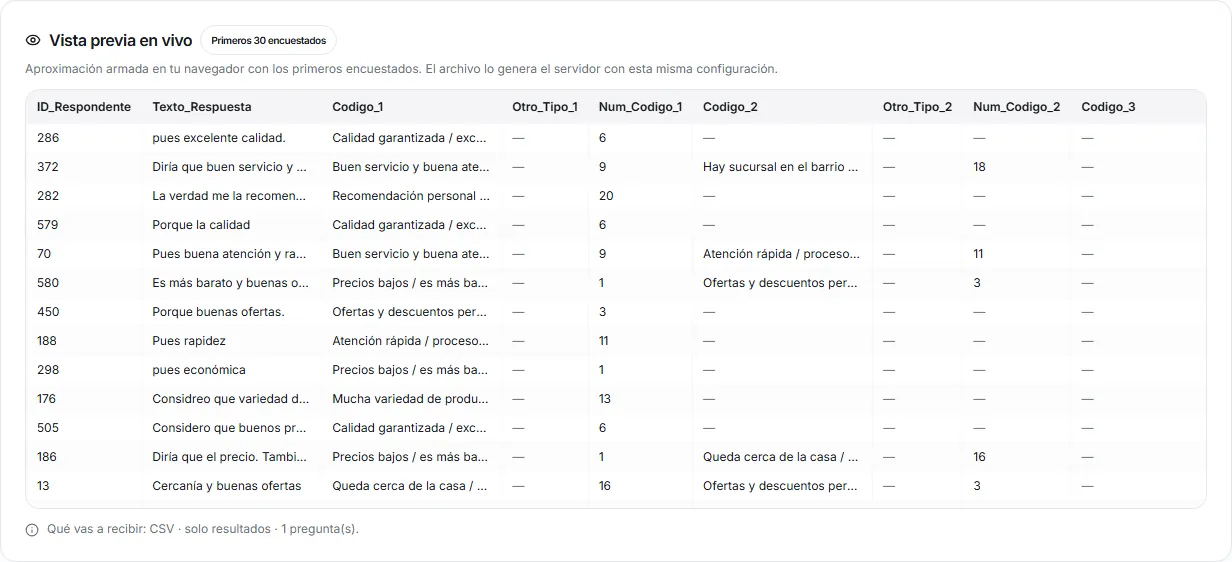
Below the editor, the Live preview shows the first 30 respondents with the chosen setup, and the What you'll get line sums up format, base and number of questions. The final file is generated by the server with that same setup.
Filter
There's no filter today: the export runs on The whole dataset. The option to export a subset is visible on screen, but it isn't active yet.
Output
The file name, the verifier (for SPSS) and the cost of that export.

When you're done, click Download, or Save and download if you save it as a template. If you only want to save the template without running it, use Save. Some options appear greyed out with the note “comes in a future version”: they aren't active yet.
Codebook
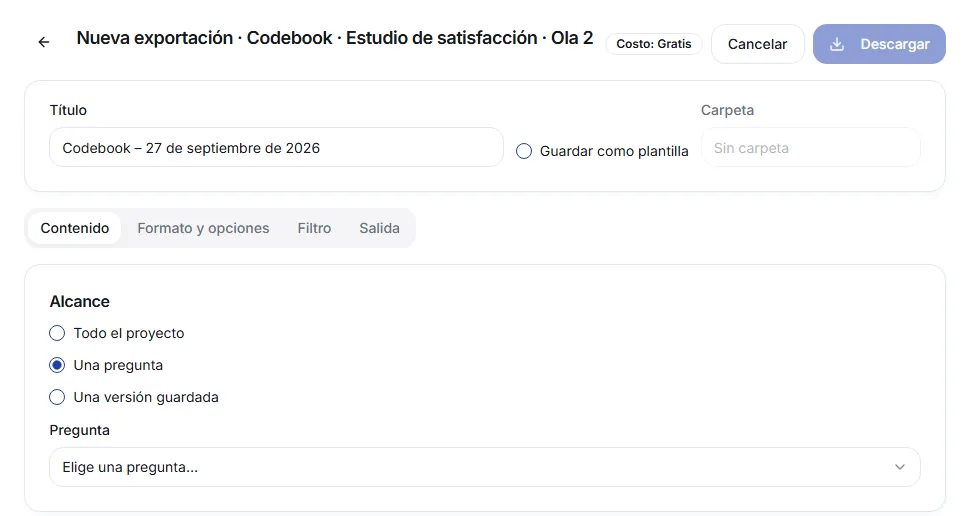
On Content you choose the Scope: The whole project, One question or A saved version of a question.
- The whole-project codebook comes out in Excel, sorted by code number. Under Format and options you can tick One tab per question: each question goes in its own tab, with an index tab (Índice) first.
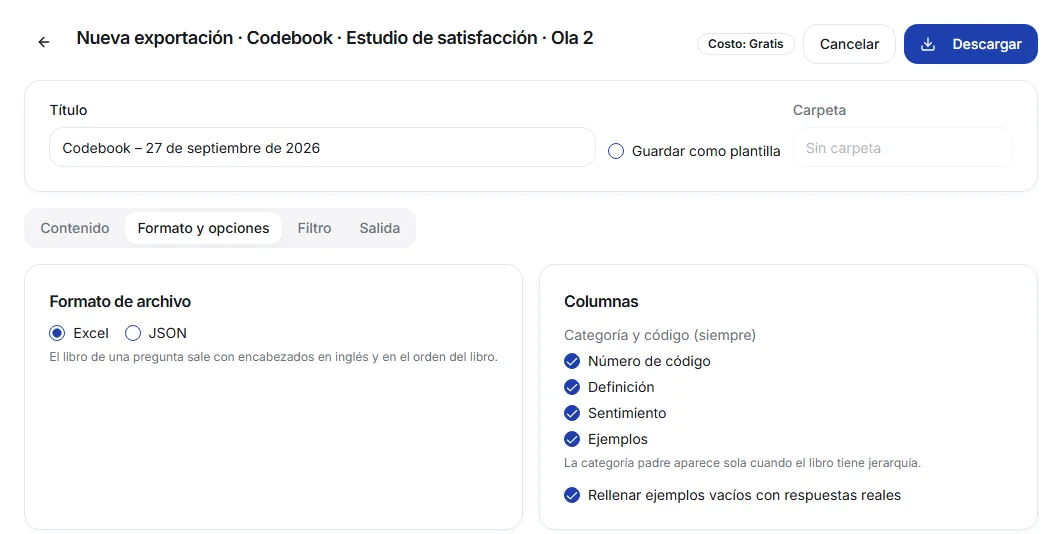
- A single question's or version's codebook comes out in Excel or JSON, in codebook order. There you choose the columns: code number, definition, sentiment and examples. Category and code are always included.
- For one question you can tick Fill empty examples with real responses: codes with no examples are filled with responses that already carry that code.
- If the codebook has a hierarchy, the parent category appears automatically.
Tables and Presentation
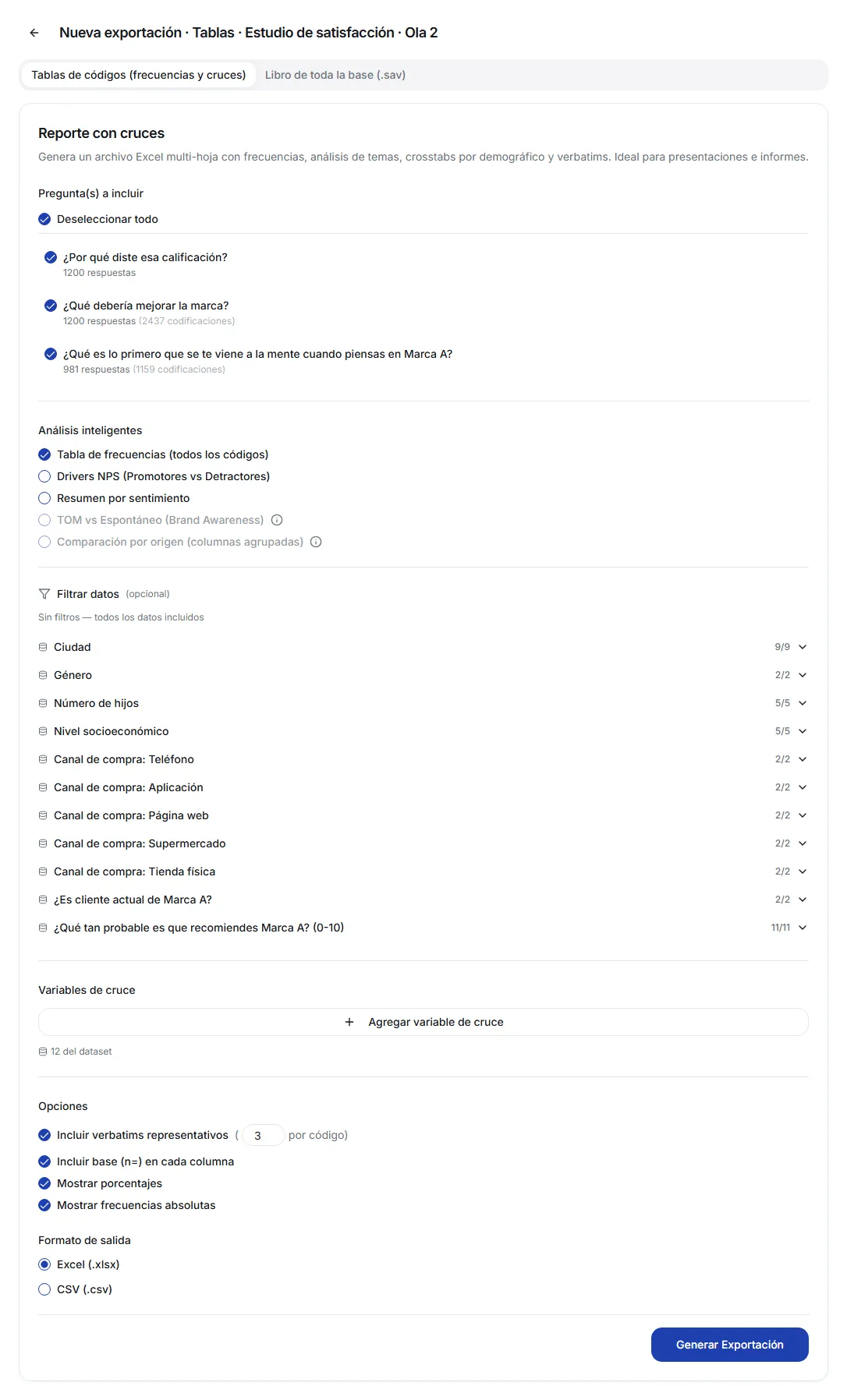
Tables has two options:
- Code tables (frequencies and crosstabs): a multi-sheet Excel file. You choose the questions, the analyses (for example, the frequency table of all codes), optional filters on your file's columns, banner variables, and options such as representative verbatims, base (n=) and percentages. You create it with Generate Export.
- Full-base book (.sav): the tab book of your whole base, not just the open-ended questions. It requires an uploaded .sav file.
Presentation opens a wizard that builds a PPTX with a chart and the findings for each question.
Today templates are saved from Data and Codebook. Tables and Presentation are generated from their own panel.
Templates
If you repeat an export in every wave or every delivery, save it as a template: tick Save as template in the editor and, if you like, put it in a Folder. A template stores the setup, not the data: every time you run it, it uses the coding results as they are at that moment.
On the Templates tab you see your templates by folder, with search and a type filter. Each row shows its last run and these actions:
- Run: generates the file again with the same setup.
- Edit: opens the template in the editor.
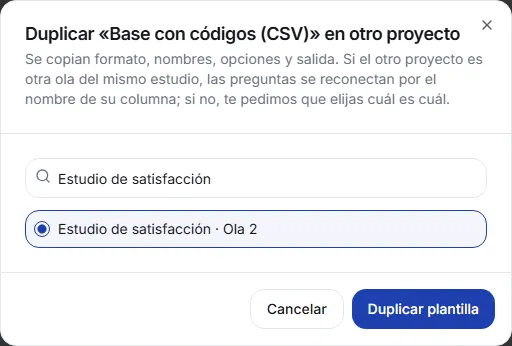
- Duplicate: In this project or In another project….
- Move to Deleted.
Duplicating into another project
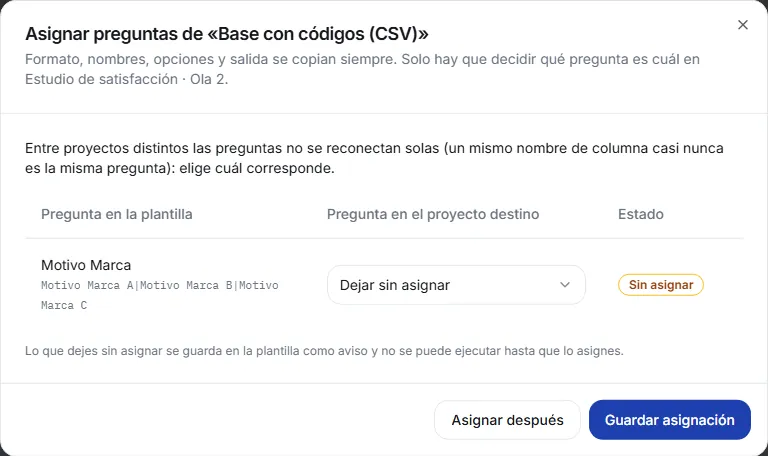
Format, names, options and output are copied. The only thing left to settle is the questions:
- Between waves of the same study, questions reconnect by themselves by their column name.
- Between different projects they don't, because the same column name is almost never the same question. We ask you to choose which question in the target project matches each one, and you can Save assignment or Assign later. Anything left unassigned is kept in the template as a warning, and the template can't run until you assign it.
When you open a new wave, the Templates tab shows the previous wave's templates with a Use in this wave button.
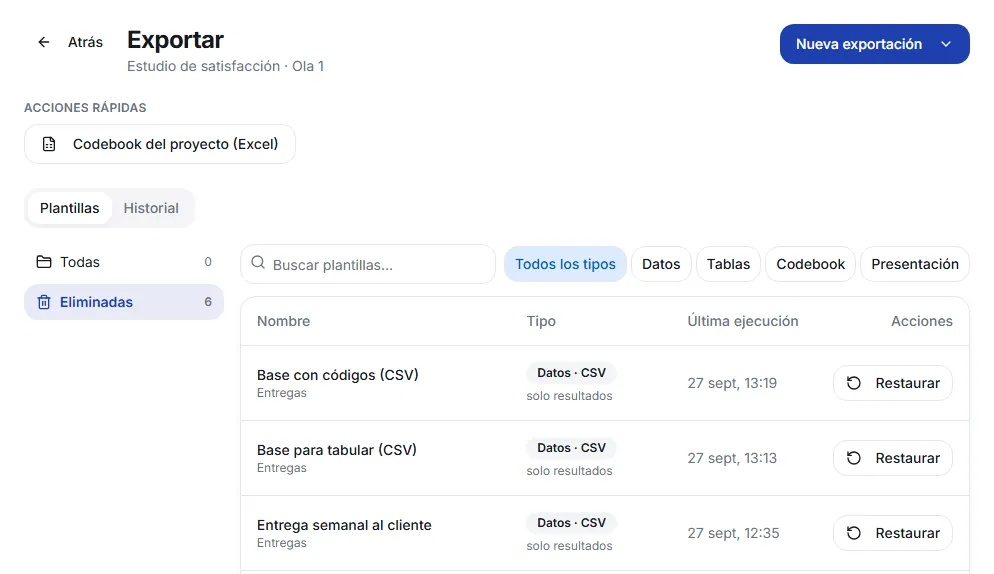
Deleted
A deleted template moves to the Deleted folder. You get it back from there with Restore.
History
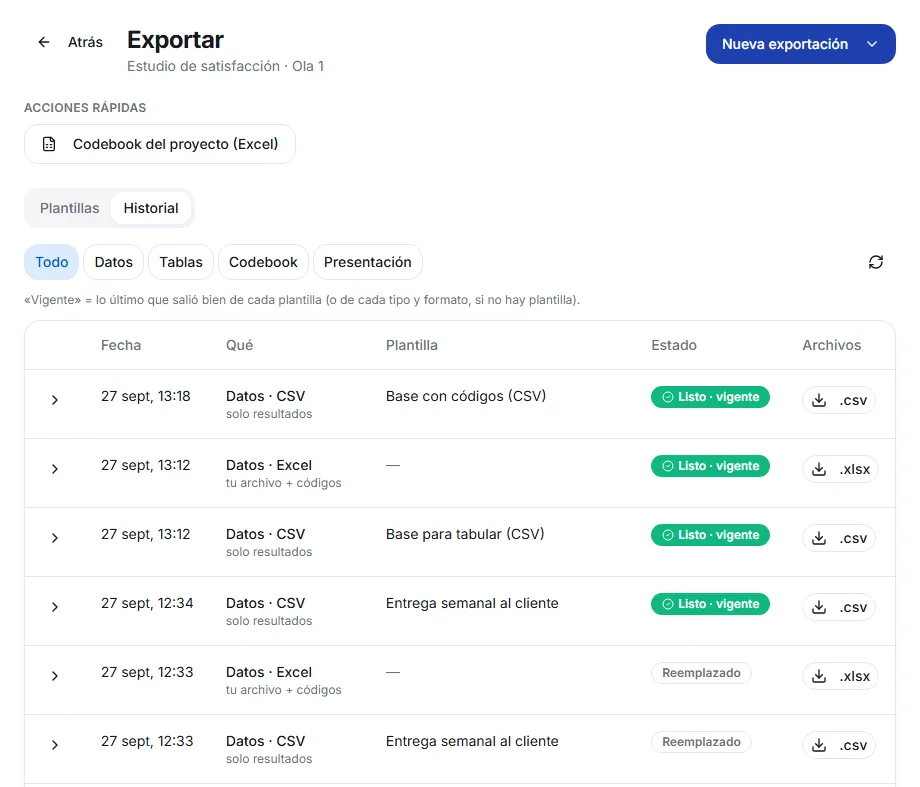
Every export leaves a row in History, with date, type, template, status and files. From there you download any file again without regenerating it.
- Ready · current: the most recent successful run of that template. If the export used no template, it's compared with those of the same type and format.
- Superseded: it succeeded, but there's a newer version of the same template (or of the same type and format). It's still available to download.
- Needs review: the verifier held the file, and it stays quarantined until an admin reviews it.
- In progress and Failed: the export is still being processed, or it couldn't be generated.
That way, downloading a codebook doesn't mark the .sav you delivered as “Superseded”: each thing has its own current version.
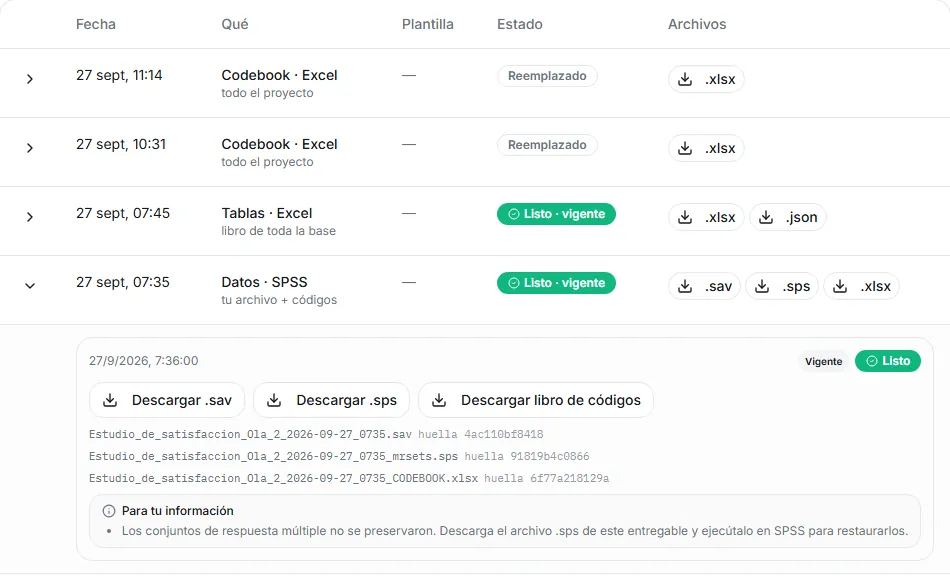
Open a row with the arrow to see the details: each file name with its fingerprint, the credits used and, when the export allows it, the Run again with this configuration button.
The row for the .sav with your original file
It also shows the verifier's result: the delivery's files (the .sav, a .sps syntax when needed, and the codebook), each with its fingerprint, plus the For your information notes. For example, if your .sav had multiple-response sets, the note tells you to run the .sps in SPSS to restore them.
Credits
- Exporting coding results is free, in any format, including SPSS (.sav).
- Processing your client's full SPSS file (your original file + the codes, or the tab book of the whole base) is in beta and free today.
- In Data and Codebook, the editor shows the cost in the Cost label before you export.
The same figures as in Results
The export counts mentions with the same rule as the Results screen and the tables: for a single-code question it counts the first mention; for a multi-code question it counts all of them. That's why your file shows the same figures you see in Results.
Frequently asked questions
- Why can't I choose “Your original file + the codes”?
- Because the project has no original file we can complete: it needs a .sav, or an Excel file of up to 5,000 rows. In that case, choose “Coding results only”.
- Where is my .sav with the codes?
- That export is processed in the background. When it's done, it shows up in History and you download it from its row.
- Does a template store the data?
- No, it stores the setup. Every time you run it, it uses the coding results as they are at that moment.
- Can I use the same template in the next wave?
- Yes. Duplicate it into the new wave's project, or use “Use in this wave” on the Templates tab. Questions reconnect by their column name.
- Do I lose earlier files when I export again?
- No. The earlier export stays in History as “Superseded” and you can still download it.
Screenshots are from sample projects and show the interface in Spanish.