
Product guide
Coding responses
Coding an open-ended question has four moments: setting up the question, building the codebook, coding the responses and refining the result. This guide walks through each one and explains what you decide on each screen so the codebook and the coding reflect your study.
The question dashboard
After importing you land on the project dashboard. On the left is the list of questions, each with its status: Pending (no codebook), Ready (has a codebook, ready to code), Coding and Coded. On the right, the detail of the question you pick.
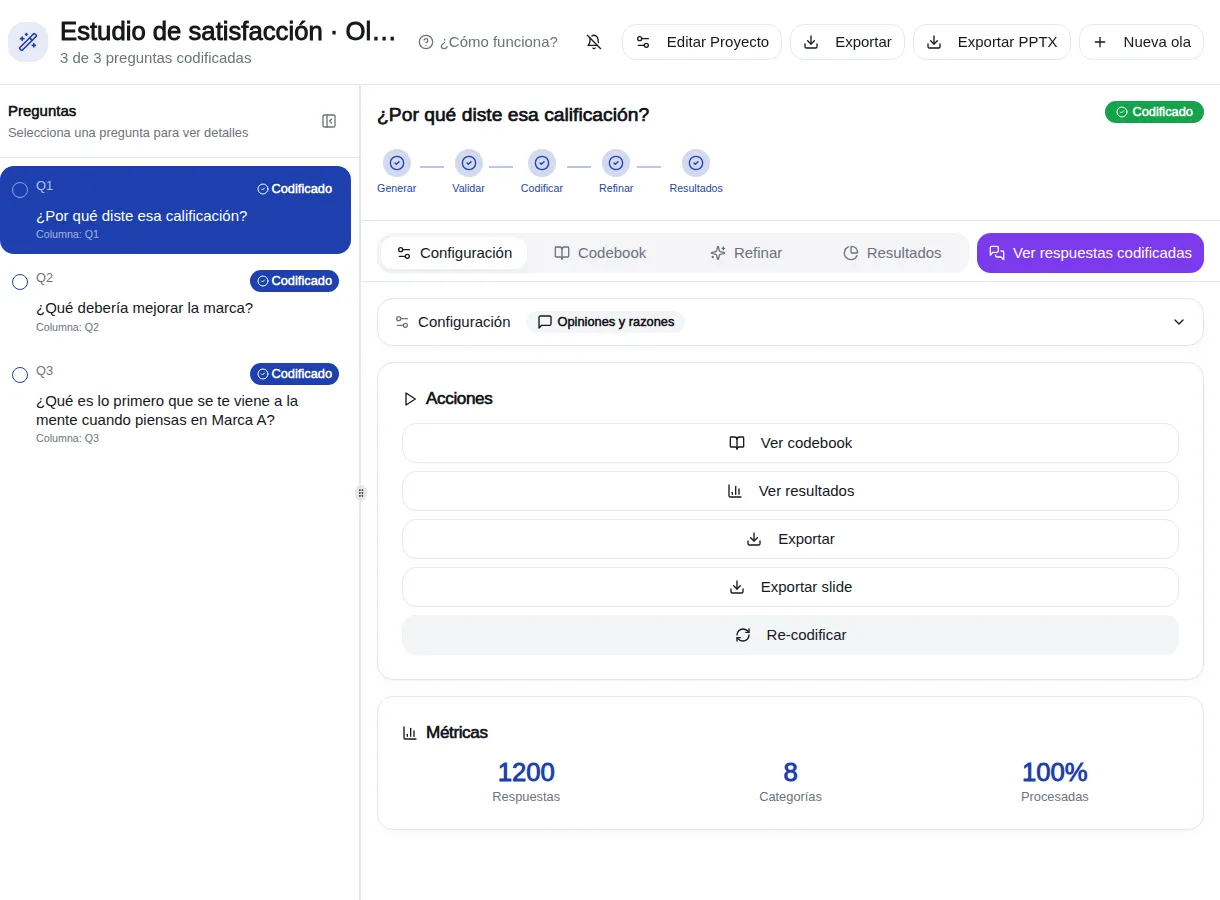
Each question has these tabs:
- Configuration: how the question is coded.
- Codebook: the list of codes, to review and edit it.
- Refine: suggestions to improve the codebook after coding.
- Results: charts and frequency tables for the question.
Top right, Code All Questions codes every question that is Ready in one go. The bell icon turns on a browser notification for when a long coding run finishes.
If the dashboard tells you some questions need a coding type, you can set it for all of them at once with Set type for all.
Group questions that use the same list
If several questions are coded with the same list (for example, recall of several ads, or the “why?” for each brand), you can merge them into one grouped question. That way you generate or import the codebook once and code once for all of them.
- In the question list on the left, tick the box of each question you want to merge (at least two).
- The selection bar appears above the list: click Group questions.
- Type the Group name and confirm. The grouped question appears in the list and its detail opens.
- Set it up and generate or import the codebook like any other question, then code it.
Grouping deletes the codes and categories those questions already had, and their coding if they were already coded (we tell you how many responses before you confirm). Responses are kept. That's why it's best to group before coding. When exporting, the By source/brand layout gives you one column per original question.
If you'd rather keep them as separate questions, don't group them: import the list into the first one with Import codebook from file, tick the option to save it for reuse, load it into the others and use Code All Questions.
Setting up the question
In Configuration you decide how the AI should read the responses. Everything you change applies when you click Save configuration.
The question text
In Original question, write the exact question the person was asked. The AI uses it to understand what a relevant answer is, so it pays to use the real question rather than a short variable name.
Coding type
- Opinions and reasons: for answers like “because it's cheap” or “I didn't like the smell”. The codebook is organized into categories and codes. This is the type for most open-ended questions.
- Names and mentions: for answers that name things, like brands, products or places. The codebook is a list of entities. It asks for the Product category so brands are recognized correctly.
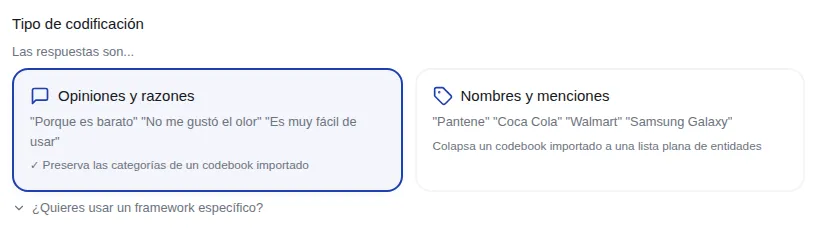
Optionally, under Want to use a specific framework? you can pick an approach (for example Motivations, Barriers, Satisfaction or Brands). If you don't pick one, the AI infers the structure from your question.
How many codes per response
- Standard — up to N codes (recommended): an answer that mentions several things gets one code for each. Under Advanced settings you set the maximum number of codes.
- Simple — 1 code: only the main aspect, useful for example for top of mind. You choose whether the AI takes the dominant one or the answer is flagged for manual review.
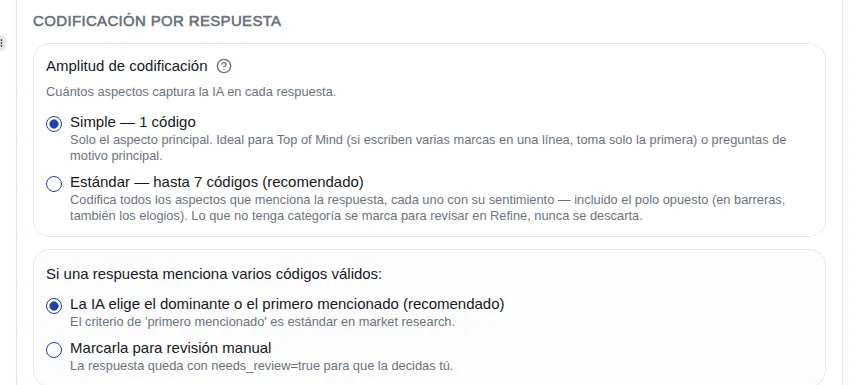
With Sentiment per mention, each code in an answer gets its own sentiment (positive or negative, or neutral too). It's useful in NPS and satisfaction, where the same answer praises one thing and criticizes another.
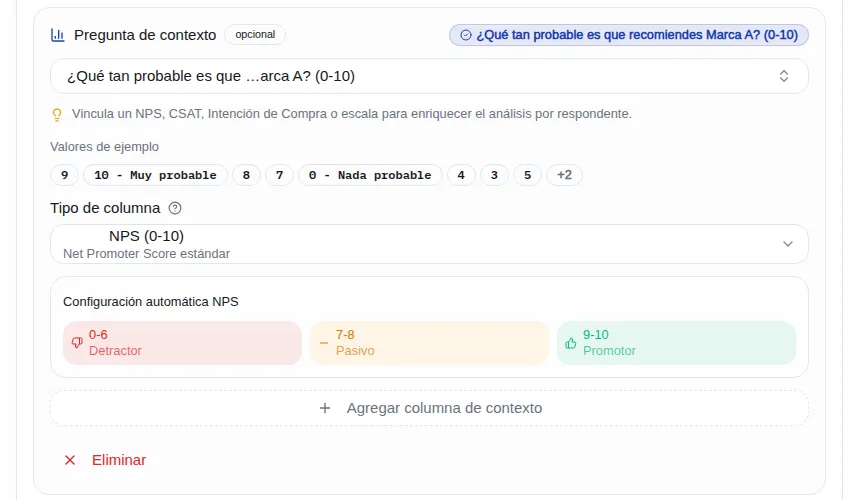
Context question
With Add context column you link up to three columns that help interpret the answer: an NPS (0-10), a Numeric scale, a Binary (Yes/No) column or a Categorical one. For example, a “why?” reads differently if the person gave 2 or 10 on the NPS.
AI instructions
In Coding Guidance you explain what the codebook doesn't say on its own: what to tell apart, what to group and how to handle unclear cases. For example: “if they mention price and the promotion together, code both”. It's optional, but it's the most direct way to adapt the coding to your study.
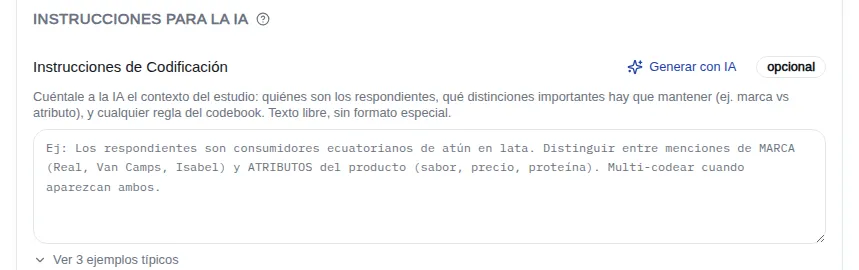
- Generate with AI drafts a proposal from a sample of your real responses. You can add extra context before generating it and edit it afterwards.
- See 3 typical examples shows templates you can paste and adapt.
Other options
- Codebook Language: the language the codes are written in. With auto-detect, the project's language is used.
- Codebook detail level: High level, Detailed (recommended) or Very granular.
- Threshold for opening a new code: how many mentions (or what percentage) a topic needs to get its own code. Below that, it goes to “Other”.
- Manual Review Threshold: which responses are flagged for you to review, based on the AI's confidence.
- Codebook policy: whether there is a general “Other”, whether each category has its own “Other”, and whether the standard residual codes are included (“Nothing / No mentions”, “Don't know / Don't remember”, “Unclassifiable”).
If the question is already coded, saved changes apply the next time it is coded.
The codebook
The codebook is the list of categories and codes the responses are coded with. You have two paths: let the AI generate it, or use your own list.
Generating it with AI
With the question set up, click Generate codebook. The AI reads every response, discovers the topics, builds the categories and checks that the codebook covers what people say. You see the progress step by step, and you can stop it with Stop. When it's done, the question moves to Ready and the Codebook tab opens.
Using your own list
If you already have a codebook (from a previous wave, from your client or from your questionnaire), load it in the configuration: type or paste it into the list, or use Import codebook from file.
- We accept Excel (.xlsx, .xls) and JSON. There's a template you can download with the expected format.
- You point to the Category column, the code Label column and the Code (no.) column; if there are no numbers, they can be numbered automatically.
- Under the advanced settings you can also bring in a Subcategory, the Definition and Examples for each code. Definitions and examples improve coding accuracy.
- If the workbook has several sheets, you choose which one to import. You can save it to reuse in the project's or study's other questions.
Then click Save configuration and Generate codebook: the codebook is created from your list exactly as you imported it.
If you tick Strict codebook (locked), the codebook doesn't change: after coding there are no suggestions for new codes. Use it for standardized codebooks your client doesn't want modified.
Editing the codebook
In the Codebook tab you can:
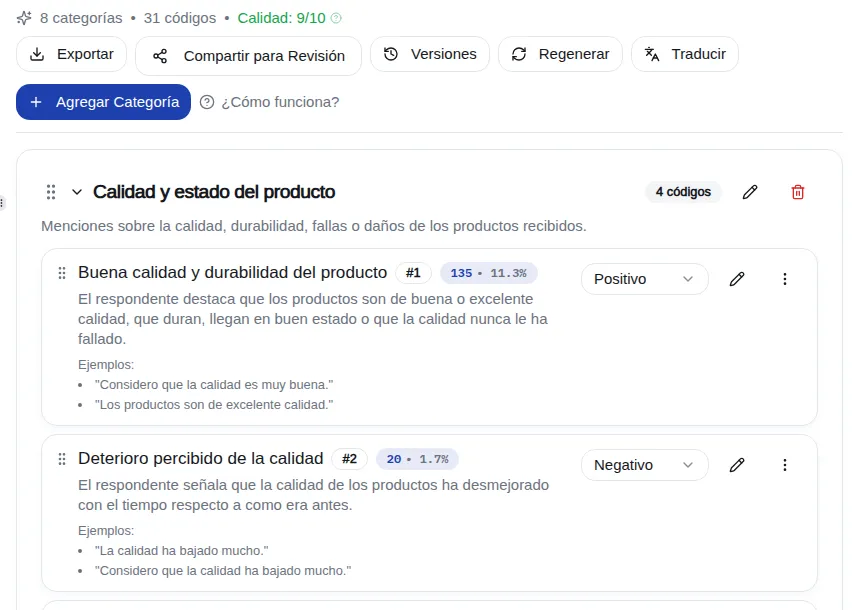
- Change a code's name, number, definition and sentiment.
- Create categories and subcategories (up to three levels: category, subcategory and code) and add codes.
- Move a code to another category, or Merge with... another code: the responses of the merged code go to the one that remains.
- Delete codes and empty categories. Deleting can't be undone, but every regeneration keeps the previous version in Versions.
- Translate the codebook into another language and export it.
Regenerate only makes sense if you changed the configuration: if you changed nothing, the screen won't let you. If the question is already coded, regenerating deletes that coding.
While a question is being coded, its codebook is locked for editing.
Sharing it for review
Share for Review creates a link so your client or a colleague can review the codebook without an account. They can comment on each code and approve it or request changes. The link expires after 7 days and accepts a single decision; for a new round, revoke it and create another. You'll see the outcome of the review in the codebook editor.
Coding the responses
When the question is Ready, the coding panel shows how many responses there are, the estimated time and the credits it will use: 1 credit per response. Click Start Multi-Layer Coding.
- Coding keeps running in the background: you can switch questions or leave the page.
- Each response goes through preparation, classification against the codebook and a quality review of the unclear cases.
- If you have unsaved configuration changes, we ask whether to save them before coding.
- If you don't have enough credits, the button is blocked and tells you so.
When it finishes, you see how many responses were coded and how many were left without a code; those are reviewed in Refine, which opens on its own. To code several questions in a row, use Code All Questions on the dashboard.
Coding again
If you change the configuration or the codebook after coding, use Re-code. Before it starts, the screen shows how many credits that re-coding will use.
Reviewing and correcting responses
View coded responses opens the list of responses with their codes. There you can filter the ones flagged for review (based on the review threshold you set), see the reason, add or remove codes and save.
Your corrections go into the project's Memory: the AI takes them into account in later coding runs, including later waves of a tracking study.
Refine: improving the codebook after coding
After coding, the AI looks at what didn't fit well (responses with no code, low confidence or that fell into “Other”) and proposes changes to the codebook. You review them in the Refine tab, one card at a time. Nothing is applied without your approval.
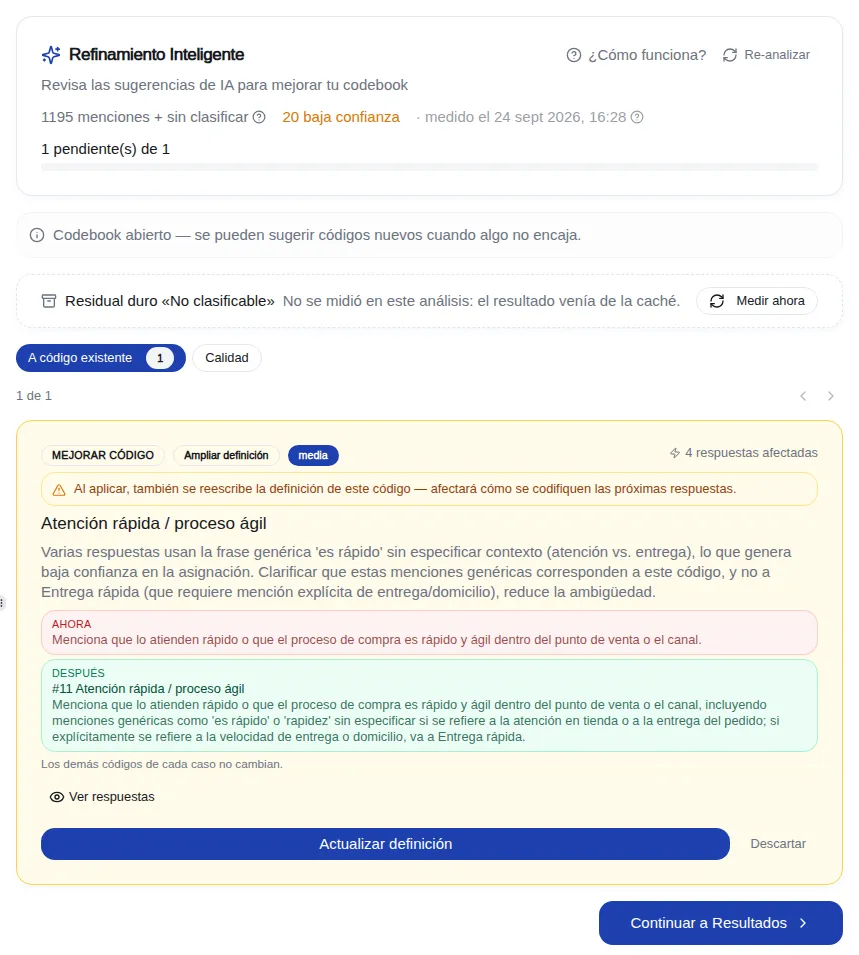
Suggestions are grouped by the kind of decision:
- Existing code: responses that should go to a code you already have, sometimes by expanding its definition.
- New code: a topic with enough mentions to get its own code.
- Other: topics that don't reach the threshold and stay in “Other”.
- Not codeable: responses with no interpretable content.
- Quality: findings about how “Other” is used and nearly identical responses with different codes.
What you can do with each card
- Apply the suggestion with the main button: for example, create the code (you can rename it first), assign the responses to a code, or update the definition.
- Look at the affected responses and move any of them to another code.
- Change destination to send them somewhere else: a category's “Other”, the general “Other”, a new code or an existing code you search for.
- Dismiss the suggestion if it doesn't apply.
When there are several safe suggestions, buttons appear to approve them in bulk, such as the high-confidence ones or the definition expansions that only add text. They always ask for confirmation.
Expanding a code's definition also changes how future responses are coded. Review it before approving.
At the top you see how many suggestions are left and the Last action you applied. Re-analyze looks for suggestions again from scratch and uses credits, which is why it asks for confirmation.
If the codebook is strict, Refine doesn't propose new codes: it only assigns to existing ones.
Every suggestion in one place
The Refine Inbox, in the sidebar, gathers pending suggestions from all your projects. You can filter them, assign them to someone on the team, open them in their question and export them to CSV.
After coding
The Results tab shows the question's charts and frequencies, and you can split them by segment. To take the data, the codebook or a presentation with you, use Export: see the exporting results guide.
Frequently asked questions
- How do I code several questions with the same list without doing them one by one?
- Tick them in the question list and click Group questions: they become one question with one codebook. Do it before coding, because grouping deletes any coding they already had.
- How many credits does coding use?
- 1 credit per coded response. Generating the codebook, importing and reviewing don't use credits; Re-analyze in Refine does. The panel shows the cost before you start.
- Which type should I choose: Opinions and reasons, or Names and mentions?
- If the answers explain something (“because…”, “I like that…”), Opinions and reasons. If they name things (brands, products, places), Names and mentions.
- Can I use my client's codebook?
- Yes. Import it from Excel in the question's configuration. If you don't want it to change, mark it as a strict codebook.
- What happens to responses that don't fit any code?
- They are left without a code or in “Other”, and in Refine you decide what to do with them: assign them to a code, create a new one or leave them in “Other”.
- I changed the configuration after coding. Does it update by itself?
- No. Changes apply the next time the question is coded: use Re-code, or Regenerate if you changed what defines the codebook.
- Can I undo a suggestion I applied in Refine?
- Ignored suggestions can be brought back. A change already applied to the codebook is fixed from the Codebook tab or by going back to an earlier version in Versions.
Screenshots are from sample projects and show the interface in Spanish.